


Disclosure: This article contains affiliate links. We may earn a commission if you purchase through our links at no extra cost to you. All software tools recommended have been independently tested on real Mac hardware.
A slow boot on Mac is one of the most fixable performance problems you can have, and in 2026, most cases are resolved in under 10 minutes without spending a single dollar.
A healthy Mac should reach a fully usable desktop in 30–60 seconds. Apple Silicon Macs (M1 through M4) often boot in under 20 seconds. If your Mac is taking 2, 3, or even 5+ minutes, something is wrong, and this guide will show you exactly what.
We cover every proven fix in order of effectiveness, from the changes that take 30 seconds and fix 80% of cases, to a clean macOS reinstall for the most stubborn situations. Every fix includes exact steps for both Apple Silicon and Intel Macs, because the process differs significantly between the two.
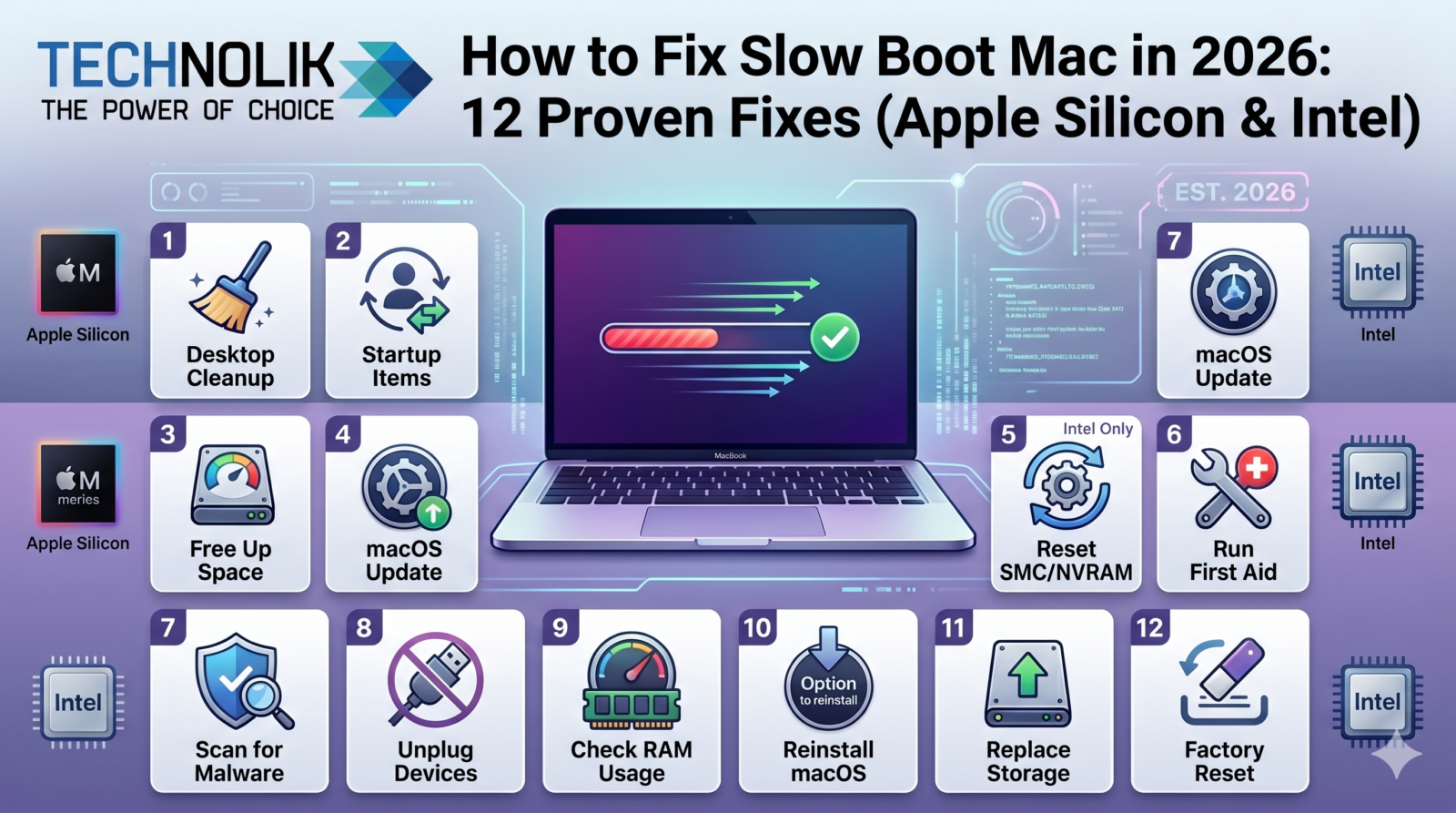
Quick summary: Fix #1 — Remove login items (fixes 80%+ of slow boot cases, takes 2 minutes). Fix #3 — Boot Safe Mode and restart (clears caches automatically, fixes most remaining cases). Fixes #4–8 — Advanced cleanup for persistent cases. Fix #10 — NVRAM/SMC reset for Intel Macs only. Fix #12 — Clean reinstall as a final resort. Apple Silicon and Intel fixes differ — check which chip your Mac has first.
First: Check Which Mac You Have (Fixes Differ)
Several fixes in this guide work differently on Apple Silicon vs Intel Macs — or apply to one type only. Before starting, confirm your chip:
- Click the Apple logo (top left corner of the screen)
- Select ‘About This Mac’
- Look at the Chip or Processor field
- If it says M1, M2, M3, or M4 — you have Apple Silicon
- If it says Intel Core i5, i7, i9 — you have an Intel Mac
| Fix | Apple Silicon (M1-M4) | Intel Mac | Priority |
| Remove login items | ✅ Yes — most effective fix | ✅ Yes — most effective fix | 🔴 Do first |
| Safe Mode boot | ✅ Yes — different method | ✅ Yes — different method | 🔴 Do second |
| Update macOS | ✅ Yes | ✅ Yes | 🔴 High |
| Free up disk space | ✅ Yes | ✅ Yes | 🔴 High |
| Clear system cache | ✅ Yes | ✅ Yes | 🟡 Medium |
| Clean LaunchAgents | ✅ Yes | ✅ Yes | 🟡 Medium |
| Run Disk Utility First Aid | ✅ Yes | ✅ Yes | 🟡 Medium |
| Disable visual effects | ✅ Yes (minor benefit) | ✅ Yes (greater benefit) | 🟢 Low |
| Clean Desktop | ✅ Yes | ✅ Yes | 🟢 Low |
| Reset NVRAM | ❌ Not applicable | ✅ Yes — use this | 🟡 Medium (Intel only) |
| Reset SMC | ❌ Not applicable | ✅ Yes — use this | 🟡 Medium (Intel only) |
| Clean reinstall macOS | ✅ Yes | ✅ Yes | ⚫ Last resort |
Normal vs Slow Boot Time: What Are You Actually Dealing With?
Before fixing anything, it helps to know whether your boot time is a minor inconvenience or a significant problem. Here are the real-world benchmarks for each Mac category in 2026:
| Mac Type | Healthy Boot Time | Slow (Needs Fixing) | Critical (Fix Urgently) |
| MacBook Air M3 / M4 | 8–15 seconds | 25–60 seconds | 60+ seconds |
| MacBook Pro M3 / M4 | 10–18 seconds | 25–60 seconds | 60+ seconds |
| Mac Mini M4 | 8–15 seconds | 20–50 seconds | 60+ seconds |
| MacBook Pro M1 / M2 | 12–20 seconds | 30–70 seconds | 90+ seconds |
| Intel MacBook Pro (2019-2021) | 20–35 seconds | 60–120 seconds | 120+ seconds |
| Intel MacBook Air (2018-2020) | 25–40 seconds | 70–120 seconds | 120+ seconds |
| Intel iMac (2019-2021) | 20–40 seconds | 60–120 seconds | 120+ seconds |
| Mac with HDD (any Intel) | 60–120 seconds | 3–5 minutes | 5+ minutes — SSD upgrade critical |
HDD vs SSD: If your Mac still has a traditional hard drive (pre-2012 Mac Mini, Mac Pro, some iMacs), replacing it with an SSD is the single biggest improvement you can make, reducing boot time from 2–5 minutes to under 40 seconds. This one hardware change has a greater impact than all software fixes combined for HDD-based Macs.
Table of Contents
- Check Which Mac You Have
- Normal vs Slow Boot Time Benchmarks
- Fix 1: Remove Login Items (Fixes 80%+ of Cases)
- Fix 2: Disable ‘Reopen Windows When Logging Back In’
- Fix 3: Boot in Safe Mode and Restart
- Fix 4: Update macOS and All Apps
- Fix 5: Free Up Disk Space
- Fix 6: Clear System and App Caches
- Fix 7: Clean Up LaunchAgents and LaunchDaemons
- Fix 8: Run Disk Utility First Aid
- Fix 9: Disable Visual Effects and Reduce Motion
- Fix 10: Reset NVRAM and SMC (Intel Mac Only)
- Fix 11: Check SSD Health
- Fix 12: Clean macOS Reinstall
- How to Measure Your Boot Time Improvement
- People Also Ask
- Frequently Asked Questions
Fix 1: Remove Login Items Fixes 80%+ of Slow Boot Cases
Time required: 2–5 minutes | Works on: All Macs | Impact: High
Login items are the single most common cause of slow Mac startup. Every app you have ever installed may have added itself to your login items — Spotify, Dropbox, Zoom, Steam, Adobe Creative Cloud, Microsoft OneDrive, Google Drive, and dozens of other apps all do this by default.
Each login item launches when you log in, consuming CPU and RAM that macOS needs to complete the boot process. With 10–20 login items running simultaneously, startup can take 3–5 minutes instead of 30 seconds.
How to Remove Login Items on macOS Ventura, Sonoma, and Sequoia
- Click the Apple menu (top left)
- Select System Settings
- Click General in the left sidebar
- Click Login Items & Extensions
- Under ‘Open at Login,’ select every app you do not need immediately at startup
- Click the minus (–) button to remove each one
- Scroll down to ‘Allow in the Background.’ This is the hidden danger zone
- Disable the toggle for every app you do not use daily
- Restart your Mac and test the boot time
How to Remove Login Items on macOS Monterey and Earlier
- Click the Apple menu
- Select System Preferences
- Click Users & Groups
- Select your username
- Click the Login Items tab
- Select apps you do not need at startup
- Click the minus (–) button to remove them
What to keep vs remove: KEEP: Security software (antivirus, VPN), backup tools (Time Machine helper, Backblaze), essential work tools you open immediately. REMOVE: Spotify, Dropbox, Google Drive, OneDrive (launch manually when needed), Steam, Discord, Slack (unless you work in it immediately), Adobe Creative Cloud updater, any app you rarely use. Rule: If you do not open it within 5 minutes of logging in, remove it from login items.
Expected result: Users who remove 5–15 login items typically see a 30–90-second improvement in boot time. This single fix resolves slow startup in the majority of cases.
Fix 2: Disable ‘Reopen Windows When Logging Back In’
Time required: 30 seconds | Works on: All Macs | Impact: Medium
macOS has a feature that restores all open windows from your previous session when you restart. While convenient, this forces macOS to reopen and load every app, document, and browser tab that was open when you last shut down — adding 30–90 seconds to boot time depending on how much was open.
Disable at Restart (Temporary)
- Click Apple menu > Restart (or Shut Down)
- In the dialog that appears, UNCHECK ‘Reopen windows when logging back in’
- Click Restart
Disable Permanently
- Go to System Settings > General > Login Items & Extensions
- Look for the ‘Allow in the Background’ section
- Scroll through and turn off any browser or app that reopens sessions
Note: This setting only applies to the current restart. There is no permanent global toggle; you must uncheck it each time in the restart dialog.
Fix 3: Boot in Safe Mode and Restart Normally
Time required: 5–10 minutes | Works on: All Macs (different methods) | Impact: High
Safe Mode is both a diagnostic tool and a direct performance fix. When your Mac boots in Safe Mode, it automatically:
- Disables all third-party login items and kernel extensions
- Runs a First Aid check on your startup disk
- Clears the system font cache
- Deletes kernel cache and other system caches
- Clears the dynamic loader shared cache
Simply booting in Safe Mode and restarting normally can improve boot speed even without identifying the specific cause, because the cache clearing and disk check fix multiple underlying issues simultaneously.
Safe Mode Apple Silicon (M1, M2, M3, M4)
- Shut down your Mac completely
- Press and hold the Power button
- Keep holding until ‘Loading startup options’ appears on screen
- Select your startup disk
- Hold the Shift key and click ‘Continue in Safe Mode.’
- Release Shift when the login window appears
- Log in (you may need to log in twice)
- Verify ‘Safe Boot’ appears in the menu bar
- Click Apple menu > Restart to restart normally
Safe Mode Intel Mac
- Shut down your Mac completely
- Wait 10 seconds
- Press the Power button and immediately hold the Shift key
- Release Shift when the login window appears
- Log in, you should see ‘Safe Boot’ in the top-right corner
- Once on the desktop, click Apple menu > Restart to restart normally
Diagnostic result: If your Mac boots noticeably faster in Safe Mode than in normal mode, a third-party app, login item, or startup extension is the cause. Remove recently installed apps and review login items using Fix 1.
Fix 4: Update macOS and All Applications
Time required: 10–45 minutes | Works on: All Macs | Impact: Medium-High
Apple regularly releases macOS updates that specifically address startup performance, fixing boot sequence bugs, optimizing login item loading, and patching memory management issues that slow startup. Running an outdated version means you are experiencing known bugs that Apple has already fixed.
Update macOS
- Click Apple menu > System Settings
- Click General > Software Update
- Click ‘Update Now’ or ‘Upgrade Now’ if an update is available
- Enter your administrator password
- Wait for the update to download and install
- Your Mac will restart to complete the installation
Update All Apps
- Open the App Store
- Click Updates in the left sidebar
- Click ‘Update All’ to install all pending app updates
Outdated third-party apps, particularly those with startup hooks such as antivirus software, cloud storage clients, and productivity tools, often cause boot slowdowns because their code is not optimized for the current macOS version.
Fix 5: Free Up Disk Space
Time required: 10–30 minutes | Works on: All Macs | Impact: Medium-High
macOS uses free disk space as a working buffer during boot — for swap files, temporary data, and system processes. When your startup disk has less than 15–20% free space, macOS struggles to load essential processes efficiently, dramatically increasing boot time.
Check Your Current Storage
- Click Apple menu > System Settings > General > Storage
- View the storage breakdown by category
- Identify your largest consumers: Documents, Applications, iCloud Drive, Trash
Quick Ways to Free Space
- Empty the Trash: Finder > Empty Trash (users often have gigabytes here)
- Remove large unused apps: Go to the Applications folder and delete anything you have not used in 6+ months
- Clear Downloads folder: Sort by size and delete old files
- Use iCloud Optimized Storage: System Settings > Storage > Store in iCloud
- Remove duplicate files: Use Gemini 2 or similar (affiliate link below)
- Clear old iOS/iPadOS backups: Finder > [your iPhone] > Manage Backups
- Remove old Time Machine local snapshots via Terminal
Target: Keep at least 20% of your total storage free for optimal boot performance. For a 256GB Mac, that means keeping at least 51GB free. For 512GB, keep 102GB free.
Fix 6: Clear System and App Caches
Time required: 5–10 minutes | Works on: All Macs | Impact: Medium
Cache files are temporary data that apps store to load faster. Over time, these files become corrupted, bloated, or outdated, forcing macOS to sort through gigabytes of stale cache data during startup. Clearing them forces a clean rebuild.
Important warning: Do not delete cache files while apps are running. Close all applications before clearing the cache. Your Mac will rebuild fresh cache files automatically on the next use. The very first boot after clearing the cache may feel slightly slower. This is normal and resolves after one restart.
Clear User Cache
- Open Finder
- Click Go in the menu bar > Go to Folder
- Type the following path and press Return:
~/Library/Caches
- Select all items inside (Command + A)
- Move to Trash (Command + Delete)
- Empty Trash
Clear System Cache
- In Finder, click Go > Go to Folder again
- Type the following path and press Return:
/Library/Caches
- Select all items inside (Command + A)
- Move to Trash — you may need your administrator password
- Empty Trash
- Restart your Mac
Note: Some cache files may be in use and cannot be deleted. Skip these — macOS will manage them automatically.
Fix 7: Clean Up Hidden LaunchAgents and LaunchDaemons
Time required: 10–15 minutes | Works on: All Macs | Impact: Medium-High
LaunchAgents and LaunchDaemons are the hidden startup scripts that most Mac users never see and the most frequently overlooked cause of persistent slow boot issues. Unlike Login Items (which you can see in System Settings), these are invisible background scripts installed by third-party apps that run automatically before you even log in.
Apps like Dropbox, Adobe products, Microsoft Office, VPNs, and many others install LaunchAgents that run update checks, sync processes, and crash reporters at every startup, even after you have deleted the main app.
How to View and Clean LaunchAgents
- Open Finder
- Click Go > Go to Folder (or press Command + Shift + G)
- Navigate to your user LaunchAgents:
~/Library/LaunchAgents
- Look for .plist files from apps you have uninstalled or do not use
- Drag suspect .plist files to the Trash
- Next, check the system-wide LaunchAgents:
/Library/LaunchAgents
- Repeat the review and removal process
- Finally, check LaunchDaemons (run before login):
/Library/LaunchDaemons
- Empty the trash and restart
Safe removal guide: SAFE TO REMOVE: .plist files with names containing apps you have already deleted (e.g., com.dropbox.DropboxUpdater.plist if you deleted Dropbox). LEAVE ALONE: Files from Apple (com.apple.*), your antivirus/security software, and any file you cannot identify — research the filename online before deleting. When in doubt: move the file to your Desktop temporarily rather than immediately trashing it. If your Mac misbehaves without it, put it back.
Power user tip: In Terminal, run the following command to list all currently loaded LaunchAgents and see which ones are active at startup:
launchctl list | grep -v com.apple
This shows all non-Apple agents currently running. Any process you do not recognize is worth investigating.
Fix 8: Run Disk Utility First Aid
Time required: 5–20 minutes | Works on: All Macs | Impact: Medium
Disk errors and file system corruption can significantly slow boot time by forcing macOS to perform extra verification and repair operations during every startup. Disk Utility’s First Aid checks and repairs the disk structure, directory entries, and file system permissions.
Run First Aid on Your Startup Disk
- Open Finder > Applications > Utilities > Disk Utility
- In the left sidebar, select your startup disk (usually named ‘Macintosh HD’)
- Click ‘First Aid’ in the toolbar
- Click ‘Run’ to confirm
- Wait for the process to complete — this takes 2–15 minutes
- Review the results
If First Aid completes successfully: Restart your Mac. Boot time should improve if disk errors are found and repaired.
If First Aid reports ‘The disk cannot be repaired’: This indicates serious disk damage. Back up your data immediately using Time Machine and consult Apple Support. Do not delay, as this can progress to complete data loss.
Run First Aid From Recovery Mode (When macOS Won’t Boot)
If your Mac is too slow to boot to the desktop, run First Aid from Recovery Mode:
- Apple Silicon: Hold the Power button until startup options appear > select Options > continue to macOS Utilities > Disk Utility
- Intel: Hold Command + R during startup until the Apple logo appears > macOS Utilities > Disk Utility
Fix 9: Disable Visual Effects and Reduce Motion
Time required: 2 minutes | Works on: All Macs, with greater benefit on Intel | Impact: Low-Medium
macOS renders visual animations, transparency effects, and motion graphics throughout the interface. While visually polished, these effects consume GPU resources during startup on older or RAM-limited Macs. Disabling them frees up system resources for the boot process and general performance.
Reduce Motion and Transparency
- Go to System Settings > Accessibility > Display
- Enable ‘Reduce Motion’
- Enable ‘Reduce Transparency’
Clean Up Your Desktop
An overlooked but genuinely impactful fix: macOS renders every file and folder icon on your Desktop as a live window during boot. A Desktop cluttered with 50+ files can add 5–15 seconds to boot time as Finder processes each one.
- Move all Desktop files to a single folder named ‘Desktop Archive.’
- Keep only 5–10 essential items on the Desktop
- This also improves Finder launch speed throughout the day
Fix 10: Reset NVRAM and SMC Intel Mac Only
Time required: 2–5 minutes | Works on: Intel Macs ONLY | Impact: Medium
Apple Silicon users: This fix does NOT apply to M1, M2, M3, or M4 Macs. Apple Silicon Macs automatically manage equivalent settings. Booting in Safe Mode (Fix 3) achieves the same result on Apple Silicon.
What NVRAM and SMC Store
NVRAM stores startup disk selection, display settings, and boot configuration. If these settings become corrupted, your Mac may search multiple disks before finding the startup disk — adding 20–60 seconds to every boot. SMC (System Management Controller) manages hardware power states and can cause boot delays when misconfigured.
Reset NVRAM on Intel Mac
- Shut down your Mac completely
- Press the Power button
- Immediately hold: Command (⌘) + Option + P + R simultaneously
- Hold all four keys until the Apple logo appears and disappears twice
- Release the keys, and your Mac will continue booting normally
After NVRAM reset, you may need to reconfigure: display resolution, sound volume, startup disk selection, and time zone. Go to System Settings and verify these settings.
Reset SMC on Intel Mac
SMC reset method varies by Intel Mac type:
| Intel Mac Type | SMC Reset Method |
| MacBook with T2 chip (2018–2021) | Shut down. Hold Ctrl + Option (left) + Shift (right) + Power for 7 seconds. Release all. Wait 5 seconds. Press Power to start. |
| MacBook Pro/Air (pre-2018, non-T2) | Shut down. Hold Shift + Ctrl + Option + Power simultaneously for 10 seconds. Release. Press Power. |
| iMac, Mac Mini, Mac Pro (Intel) | Shut down. Unplug power cord. Wait 15 seconds. Reconnect. Wait 5 seconds. Press Power. |
Fix 11: Check SSD Health
Time required: 5 minutes | Works on: All Macs | Impact: Diagnostic
A degraded or failing SSD causes significantly slower boot times as the drive struggles to reliably read boot data. This is particularly relevant for Macs that are 4+ years old or have been used intensively.
Check SMART Status in Disk Utility
- Open Finder > Applications > Utilities > Disk Utility
- Select your startup disk in the left sidebar
- Look for ‘S.M.A.R.T. Status’ at the bottom of the window
- ‘Verified’ = healthy drive
- ‘Failing’ = back up immediately and replace the drive
Advanced SSD Health Check
For more detailed SSD diagnostics, use the free DriveDx trial or smartmontools (installable via Homebrew). These tools display the percentage of SSD life remaining, error counts, and temperature data that are not visible in Disk Utility.
| Terminal command for quick SSD health check (Intel Macs): diskutil info /dev/disk0 | grep -i health |
Fix 12: Clean macOS Reinstall — The Nuclear Option
Time required: 2–4 hours | Works on: All Macs | Impact: Maximum
If all previous fixes have failed to meaningfully improve boot time, a clean macOS reinstall restores factory-fresh performance by eliminating years of accumulated system cruft, corrupted system files, and unidentifiable startup conflicts. This is the most effective software fix available, but it requires backing up all data and reinstalling all applications from scratch.
BACK UP FIRST: A clean reinstall erases EVERYTHING on your Mac. Use Time Machine to create a full backup before proceeding. Verify the backup completes successfully before starting the reinstall. There is no recovery without a backup.
Back Up With Time Machine
- Connect an external drive with at least as much space as your Mac’s storage
- Go to System Settings > General > Time Machine
- Click ‘Add Backup Disk’ and select your external drive
- Click ‘Back Up Now’ and wait for the full backup to complete
- Verify the backup by clicking ‘Enter Time Machine’ and checking recent files
Boot Into macOS Recovery
- Apple Silicon: Press and hold the Power button until startup options appear > click Options > Continue
- Intel Mac: Hold Command + R immediately after pressing Power until the Apple logo appears
Reinstall macOS
- In macOS Recovery, select ‘Reinstall macOS.’
- Click Continue and follow the on-screen instructions
- Select your startup disk when prompted
- Wait for the reinstall to complete — 30–90 minutes, depending on internet speed
- Set up your Mac as new (do NOT restore from Time Machine backup if you want the cleanest possible result)
- Reinstall only the apps you actually use — do not restore everything from your old setup
After a clean reinstall, most Macs boot in their factory-fresh state, typically 50–70% faster than before the fixes were needed.
How to Measure Your Boot Time Improvement
Before and after each major fix, measure your actual boot time using this method:
- Shut down your Mac completely (Apple menu > Shut Down)
- Start a timer on your phone the moment you press the Power button
- Stop the timer when you can actively use the desktop, not just when the login screen appears
- Record the time
- Apply a fix, restart, and measure again
Tracking boot time before and after each fix tells you exactly which change had the biggest impact for your specific Mac — useful information if the problem recurs.
| Fix Applied | Typical Boot Time Reduction |
| Login items removal (10+ items) | 30–90 seconds faster |
| Safe Mode boot and restart | 15–40 seconds faster |
| macOS update (if bug was present) | 10–45 seconds faster |
| Cache clearing | 5–20 seconds faster |
| LaunchAgents cleanup | 10–30 seconds faster |
| NVRAM reset (Intel) | 10–60 seconds faster |
| Disk Utility First Aid | 5–30 seconds faster |
| Clean reinstall | 50–70% total improvement |
People Also Ask — Mac Slow Boot
Why does my Mac take so long to get past the Apple logo?
A Mac stuck on the Apple logo for more than 60 seconds is experiencing a boot process failure. The most common causes are: a startup disk that needs First Aid repair (run Disk Utility from Recovery Mode), a corrupted login item or kernel extension preventing the system from loading, a nearly full startup disk leaving insufficient space for boot processes, or FileVault performing a full-disk verification after an unclean shutdown. Boot in Safe Mode first. If that succeeds, the issue is a third-party startup item. If Safe Mode also fails, boot from Recovery Mode and run Disk Utility First Aid.
Does adding more RAM speed up Mac startup?
RAM upgrade can improve Mac boot time when memory pressure during startup is genuinely the bottleneck. If Activity Monitor shows consistently yellow or red memory pressure during the boot process, more RAM allows macOS to load boot processes into RAM rather than using slower swap file operations, reducing boot time by 15–45 seconds. However, RAM is not upgradeable on Apple Silicon Macs (M1 and later) or most Macs made after 2012. For these models, the equivalent improvement comes from removing login items and LaunchAgents to reduce RAM demand at startup.
Why is my Mac slow after a macOS update?
Slow boot immediately after a macOS update is usually temporary and expected. After an update, macOS performs background tasks including Spotlight reindexing (mds and mdworker processes), app optimization passes, iCloud sync verification, and Photo library analysis. These tasks are typically completed within 24–48 hours, after which boot speed returns to normal or improves. If slowness persists beyond 48 hours, the update may have introduced a bug. Check Apple’s support forums for reports of the same issue, and wait for a point release patch, which Apple typically issues within 1–2 weeks.
How do I stop my Mac from starting up slowly after sleep?
Slow wake from sleep is different from slow boot — they have different causes. If your Mac wakes slowly, check: Power Nap is disabled (System Settings > Battery > Power Nap), Sleep setting is not set to ‘Never’ on a laptop (can cause SSD-swap confusion), Bluetooth and Wi-Fi are connecting to networks and devices on wake (normal, takes 5–10 seconds), and connected peripherals are compatible with your Mac’s current macOS version. If wake consistently takes more than 30 seconds, try resetting the SMC (Intel) or running First Aid on the startup disk.
How to Fix Slow Boot Mac Frequently Asked Questions
Why is my Mac so slow to start up?
The most common causes of slow Mac startup are too many login items launching simultaneously (the cause in 80%+ of cases), a startup disk with less than 15% free space, corrupted system cache files, outdated macOS with unpatched startup bugs, hidden LaunchAgents from old apps, FileVault verification after an unclean shutdown, and degraded SSD health. Start by removing the login item, which resolves the majority of slow-boot cases in under 5 minutes.
How long should a Mac take to boot?
Apple Silicon Macs (M1 through M4) should reach a fully usable desktop in 15–30 seconds total. Intel Macs with SSDs should boot in 30–60 seconds. Any Mac that takes longer than 2 minutes to boot has a fixable performance issue. Macs with traditional hard drives boot in 60–120 seconds — the single most impactful improvement for these machines is replacing the HDD with an SSD.
Does resetting NVRAM fix slow boot on Mac?
NVRAM reset can fix slow boot on Intel Macs when corrupted startup disk selection settings are causing the issue. Hold Command + Option + P + R immediately after pressing the power button until the Apple logo appears and disappears twice. Apple Silicon Macs (M1 through M4) do not have traditional NVRAM — they reset equivalent settings automatically during Safe Mode boot. NVRAM reset is most effective when the Mac searches multiple disks before booting, shows a flashing question mark at startup, or takes an unusually long time to display the Apple logo.
What is the difference between Login Items and LaunchAgents?
Login Items are apps visible in System Settings > General > Login Items that launch when you log in. LaunchAgents are hidden background scripts installed by third-party apps that run at startup without appearing in the Login Items list. LaunchAgents are often the more significant slow boot cause because they run before you see the desktop and are invisible to most users. View them in Finder using Go to Folder: ~/Library/LaunchAgents and /Library/LaunchAgents.
Will upgrading RAM fix a slow boot on a Mac?
RAM can indirectly improve boot time if memory pressure during startup is the bottleneck. If Activity Monitor shows high memory pressure during boot, adding RAM reduces swap usage and can cut 15–45 seconds from startup. However, RAM is not upgradeable on Apple Silicon Macs or most Macs made after 2012. For these models, removing login items and LaunchAgents achieves the same result by reducing RAM demand at startup.
Is Safe Mode good for fixing a slow Mac startup?
Yes — Safe Mode is both a diagnostic tool and a direct fix. It disables all third-party login items and extensions, runs a First Aid check on the startup disk, and automatically clears system caches. If your Mac boots faster in Safe Mode than in normal mode, a third-party app or login item is the cause. Booting in Safe Mode and restarting normally often improves boot speed, even without identifying the specific culprit, because it clears the cache and runs a disk check.
How do I stop apps from opening at startup on Mac?
Go to System Settings > General > Login Items & Extensions. Under ‘Open at Login’, select any app you do not need immediately and click the minus button to remove it. Also, check ‘Allow in the Background’ and disable toggles for apps you do not use regularly. For hidden background processes, also check ~/Library/LaunchAgents in Finder for .plist files from apps you have uninstalled.
When should I do a clean macOS reinstall to fix slow boot?
A clean reinstall is warranted when all software fixes, login item cleanup, cache clearing, Disk Utility First Aid, NVRAM reset, and SMC reset have been tried without meaningful improvement, the Mac has run the same installation for 4+ years, or boot time consistently exceeds 3 minutes. Always back up with Time Machine first. A clean reinstall typically restores factory-fresh boot performance and should be the last resort before hardware diagnosis.
The Bottom Line — Follow This Order
Work through these fixes in exact order. Stop when boot time returns to normal:
- Remove login items — 2 minutes, fixes 80% of cases
- Disable ‘Reopen windows when logging back in’ — 30 seconds
- Boot Safe Mode and restart — 10 minutes, fixes most remaining software cases
- Update macOS and all apps — 15–45 minutes
- Free up disk space to 20%+ — 10–30 minutes
- Clear system and user caches — 5 minutes
- Clean LaunchAgents and LaunchDaemons — 10 minutes
- Run Disk Utility First Aid — 15 minutes
- Disable visual effects and clean the desktop — 2 minutes
- Reset NVRAM and SMC (Intel only) — 5 minutes
- Check SSD health — 5 minutes
- Clean macOS reinstall as final resort — 2–4 hours
| Fastest result: For 80%+ of readers, Fix 1 (login items) + Fix 3 (Safe Mode restart) will restore normal boot speed in under 15 minutes total. Start there before attempting anything else. |