

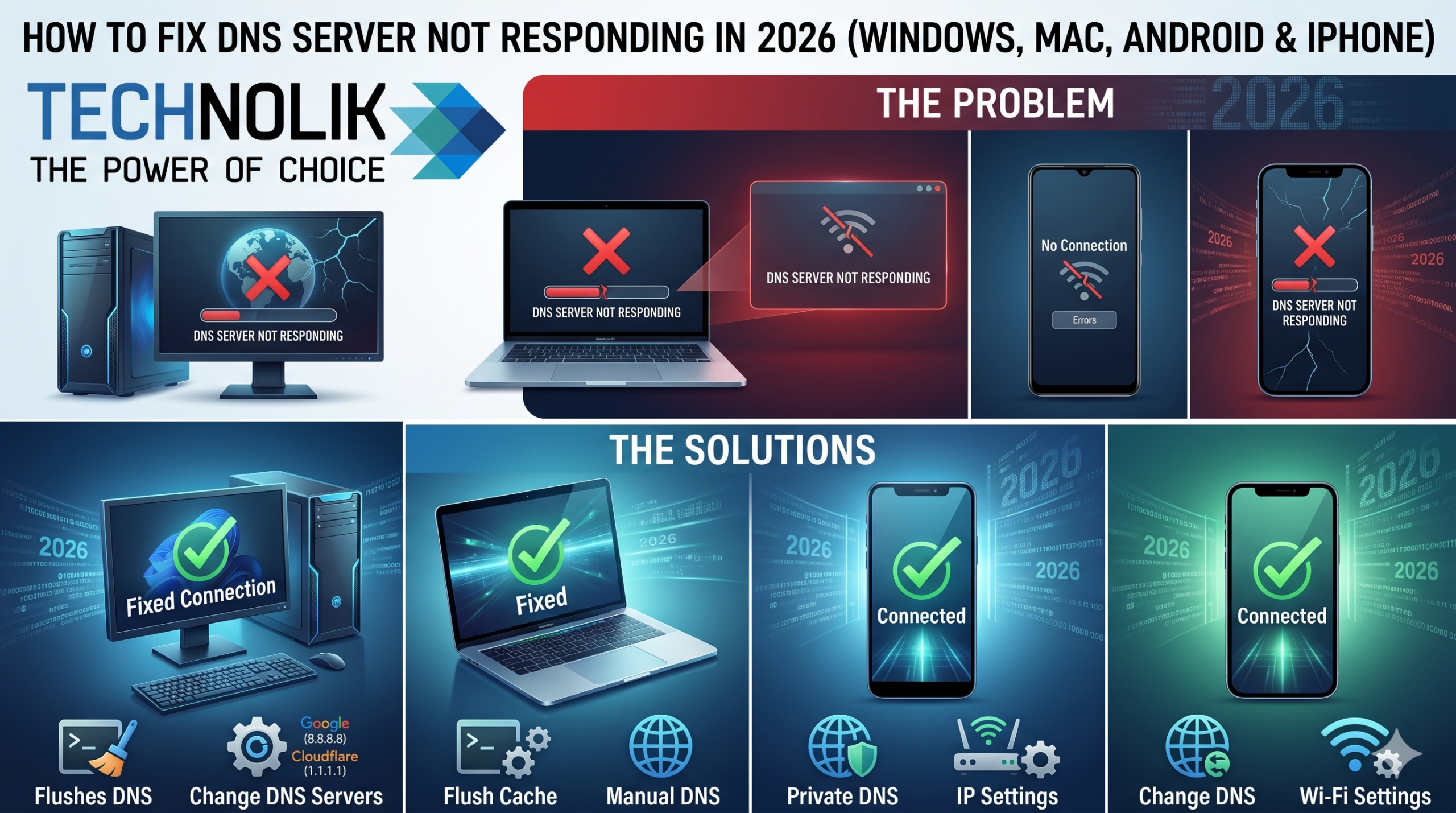

A DNS server not responding error means your device cannot translate a website name into an IP address, so nothing loads, even though your internet connection is working fine.
The good news: this is one of the most fixable errors in networking. In most cases, switching to a faster public DNS server or flushing your DNS cache resolves it in under 2 minutes. This guide covers every fix for every device in the correct order — from fastest to most technical.
| Quick fix — works for 70% of cases: Windows: Open Command Prompt as Admin → type ‘ipconfig /flushdns’ → press Enter. Then go to Settings > Network > Wi-Fi > Hardware Properties > DNS → set to 1.1.1.1 (Cloudflare) or 8.8.8.8 (Google). Mac: Open Terminal → run ‘sudo dscacheutil -flushcache; sudo killall -HUP mDNSResponder’. Then System Settings > Network > Wi-Fi > Details > DNS > add 1.1.1.1 and 8.8.8.8. All devices: Unplug your router for 30 seconds. This alone fixes the error in many cases. |
Table of Contents
- What Does DNS Server Not Responding Actually Mean?
- Quick Diagnosis — Where Is the Problem?
- Best Public DNS Servers in 2026 (Use These Instead of Your ISP’s)
- Fix 1: Restart Your Router (30 Seconds, Works Often)
- Fix 2: Switch to a Public DNS Server (Fastest Permanent Fix)
- Fix 3: Flush Your DNS Cache
- Fix 4: Reset Network Settings — Windows
- Fix 5: Update or Reinstall Network Adapter Driver — Windows
- Fix 6: Disable IPv6 — Windows
- Fix 7: Flush DNS Cache and Change DNS — Mac
- Fix 8: Fix DNS on Android
- Fix 9: Fix DNS on iPhone
- Fix 10: Check Firewall and Antivirus DNS Blocking
- Fix 11: Reset Router to Factory Settings (Last Resort)
- How to Check If Your ISP’s DNS Is Down
- Best DNS Servers Comparison Table 2026
- People Also Ask
- Frequently Asked Questions
What Does DNS Server Not Responding Actually Mean?
DNS stands for Domain Name System — the internet’s address book. When you type ‘google.com’ into your browser, a DNS server looks up the IP address (like 142.250.80.46), so your browser knows where to connect.
‘DNS server not responding’ means that the lookup process failed. Your internet connection may be working perfectly, but because DNS isn’t resolving domain names, no websites load.
| Cause | How common | Fix section |
| ISP DNS server is down or overloaded | Very common — #1 cause | Fix 2 — switch DNS |
| Router cache has stale/corrupted DNS data | Common | Fix 1 — restart the router |
| Device DNS cache is corrupted | Common | Fix 3 — flush DNS cache |
| VPN interfering with DNS | Common for VPN users | Disable VPN, test, reconfigure |
| Network adapter driver issue | Moderate | Fix 5 — update driver |
| IPv6 conflict with DNS resolution | Moderate — Windows specific | Fix 6 — disable IPv6 |
| Firewall blocking DNS port 53 | Less common | Fix 10 — check firewall |
| Router firmware bug | Less common | Fix 11 — router reset |
Quick Diagnosis — Where Is the Problem?
Run this 60-second test before trying any fix to understand exactly where the issue is:
- Check if other devices on your network have the same problem. If yes, the issue is your router or ISP. If no, the issue is specific to this device.
- Try loading a website directly by IP address. Open your browser and type 142.250.80.46 (Google’s IP address). If that loads but google.com does not — DNS is definitely the issue, not your internet connection.
- Try a different browser. If the error only appears in one browser, clear that browser’s DNS cache and cookies.
- Disconnect your VPN if active and test again. VPN DNS conflicts are a very common overlooked cause.
Problem on all devices → Start with Fix 1 (router restart) and Fix 2 (change DNS).
Problem on one device only → Start with Fix 3 (flush DNS cache) and Fix 2 (change DNS on that device).
Problem only in one browser → Clear that browser’s cache and cookies. No other fixes needed.
Best Public DNS Servers in 2026 — Use These Instead of Your ISP’s
Your ISP assigns a DNS server automatically — and it is often the weakest link. ISP DNS servers go down more frequently, respond more slowly, and provide less privacy than public alternatives. Switching to a public DNS server is the single most effective fix for most DNS errors.
| DNS Provider | Primary DNS | Secondary DNS | Best for | Speed |
| Cloudflare | 1.1.1.1 | 1.0.0.1 | Speed + privacy — fastest globally | Fastest |
| Google Public DNS | 8.8.8.8 | 8.8.4.4 | Reliability + compatibility | Very fast |
| Quad9 | 9.9.9.9 | 149.112.112.112 | Security — blocks malicious domains | Fast |
| OpenDNS | 208.67.222.222 | 208.67.220.220 | Parental controls + filtering | Fast |
| Cloudflare Family | 1.1.1.3 | 1.0.0.3 | Blocks malware + adult content | Fastest |
Recommended for most users: Use Cloudflare (1.1.1.1 / 1.0.0.1) as primary and Google (8.8.8.8) as secondary. Cloudflare is the fastest globally and has a strict no-logging privacy policy. Google provides an excellent fallback with near-perfect uptime.
Fix 1: Restart Your Router (30 Seconds — Works Often)
Time: 2 minutes | Works on: All devices | Success rate: ~40%
Routers cache DNS lookups to speed up browsing. When that cache becomes stale or corrupted, all devices on the network experience DNS errors. A full power cycle clears the cache.
- Unplug your router’s power cable from the wall, not just the power button
- Wait a full 30 seconds (do not rush, these capacitors need time to discharge)
- Plug the power cable back in
- Wait 2 minutes for the router to fully reconnect to your ISP
- Test your connection by loading a website
| If you have a separate modem and router, unplug both. Plug the modem in first and wait 60 seconds. Then plug the router in and wait another 60 seconds. This order matters — the router needs the modem to establish an upstream connection first. |
Fix 2: Switch to a Public DNS Server
Time: 3 minutes | Works on: All devices | Success rate: ~65% | Most effective fix
Switching your DNS server is the highest-impact single change you can make. It bypasses your ISP’s DNS entirely and often resolves the error immediately.
Change DNS on Windows 11
- Click the Start button and go to Settings
- Click Network & Internet
- Click Wi-Fi, then click your connected network name
- Click ‘Hardware properties.’
- Next to the DNS server assignment, click Edit
- Switch from Automatic to Manual
- Turn on IPv4
- Preferred DNS: 1.1.1.1 | Alternate DNS: 8.8.8.8
- Click Save
Change DNS on Windows 10
- Right-click the network icon in the taskbar → Open Network & Internet Settings
- Click Change Adapter Options
- Right-click your active network connection → Properties
- Select Internet Protocol Version 4 (TCP/IPv4) → Click Properties
- Select ‘Use the following DNS server addresses’
- Preferred DNS server: 8.8.8.8
- Alternate DNS server: 8.8.4.4
- Click OK on all dialogs
Change DNS via Command Prompt (Windows — fastest method)
Open Command Prompt as Administrator and run these two commands:
netsh interface ip set dns name=”Wi-Fi” static 1.1.1.1
netsh interface ip add dns name=”Wi-Fi” 8.8.8.8 index=2
Replace ‘Wi-Fi’ with ‘Ethernet’ if you are on a wired connection. Run ipconfig to check your adapter name if unsure.
Fix 3: Flush Your DNS Cache
Time: 1 minute | Works on: Windows and Mac | Success rate: ~50% for cache-related errors
Flushing DNS clears your device’s locally stored DNS records. When cached entries become stale or corrupted, your device keeps trying to reach the wrong IP address. Flushing forces a fresh lookup.
Flush DNS on Windows
Open Command Prompt as Administrator (search ‘cmd’ → right-click → Run as Administrator) and run:
ipconfig /flushdns
You should see: ‘Successfully flushed the DNS Resolver Cache.’ Then also run:
ipconfig /registerdns
ipconfig /release
ipconfig /renew
Restart your computer after running all four commands.
Flush DNS on Mac
Open Terminal (Applications > Utilities > Terminal) and run:
sudo dscacheutil -flushcache; sudo killall -HUP mDNSResponder
Enter your Mac password when prompted. No success message appears this is normal. The flush happens silently.
macOS version differences: The command above works for macOS Monterey, Ventura, Sonoma, and Sequoia. For older macOS versions (Big Sur and earlier): sudo dscacheutil -flushcache; sudo killall -HUP mDNSResponder is the same command.
Fix 4: Reset Network Settings — Windows
Time: 5 minutes + restart | Works on: Windows 10/11 | Success rate: ~55% for persistent errors
Winsock is the Windows component that handles network connections. Corruption in Winsock can cause persistent DNS errors that are not resolved by flushing or DNS changes.
Open Command Prompt as Administrator and run these commands in sequence:
netsh winsock reset
netsh int ip reset
ipconfig /flushdns
ipconfig /release
ipconfig /renew
Restart your computer after running all five commands. This resets all network settings to defaults.
| Note: Winsock reset may remove custom network configurations. You will need to re-enter any saved Wi-Fi passwords and VPN settings after restart. |
Fix 5: Update or Reinstall Network Adapter Driver — Windows
Time: 5–10 minutes | Works on: Windows | Success rate: ~40% for driver-related errors
An outdated, corrupted, or incompatible network adapter driver can cause DNS resolution failures that persist even after changing DNS servers and flushing the cache.
- Press Windows + X → select Device Manager
- Expand ‘Network Adapters’
- Right-click your Wi-Fi or Ethernet adapter
- Select ‘Update Driver’ → ‘Search automatically for drivers.’
- If no update is found, right-click again → ‘Uninstall Device’
- Restart your computer — Windows will reinstall the driver automatically
Alternative: Download the latest driver directly from your device manufacturer’s website (Dell, HP, Lenovo, Asus, etc.) and run the installer manually. This often provides a newer version than Windows Update offers.
Fix 6: Disable IPv6 — Windows
Time: 2 minutes | Works on: Windows | Success rate: ~35% for IPv6-related conflicts
IPv6 is the latest internet protocol, but some routers and ISPs have incomplete IPv6 support that causes DNS resolution conflicts. Disabling it forces all traffic through IPv4.
- Press Windows + X → select Network Connections
- Right-click your active network connection → Properties
- Uncheck ‘Internet Protocol Version 6 (TCP/IPv6)’
- Click OK
- Restart your computer and test
Note: Disabling IPv6 is safe for most home users. IPv4 handles all standard Internet traffic. Re-enable IPv6 later if it has no effect — it is not the cause of your DNS error.
Fix 7: Flush DNS Cache and Change DNS — Mac
Time: 3 minutes | Works on: macOS Ventura, Sonoma, Sequoia | Success rate: ~65%
Step 1: Flush Mac DNS Cache
Open Terminal and run:
sudo dscacheutil -flushcache; sudo killall -HUP mDNSResponder
Step 2: Change DNS Servers on Mac
- Click the Apple menu → System Settings
- Click Network in the left sidebar
- Click Wi-Fi → click Details next to your connected network
- Click the DNS tab
- Click the + button to add DNS servers
- Add: 1.1.1.1 (Cloudflare primary)
- Add: 8.8.8.8 (Google fallback)
- Click OK → Apply
Step 3: Toggle Wi-Fi Off and On
Click the Wi-Fi icon in the menu bar → Turn Wi-Fi Off. Wait 5 seconds. Turn Wi-Fi On. Reconnect to your network and test.
Delete and Re-add Wi-Fi Network (if the above steps fail)
- System Settings → Network → Wi-Fi
- Click the three dots next to your network → Forget This Network
- Reconnect to your Wi-Fi by entering your password
- The new connection will use automatic DNS initially — re-add your custom DNS from Step 2
Fix 8: Fix DNS Server Not Responding on Android
Time: 2 minutes | Works on: All Android devices
Method 1: Change DNS for your Wi-Fi network
- Open Settings → Network & Internet (or Connections)
- Tap Wi-Fi
- Long-press your connected network → tap Modify Network
- Tap Advanced Options
- Change IP Settings from DHCP to Static
- DNS 1: 1.1.1.1
- DNS 2: 8.8.8.8
- Tap Save
Method 2: Use Private DNS (Android 9+) — Simplest Method
- Open Settings → Network & Internet → Advanced
- Tap Private DNS
- Select ‘Private DNS provider hostname’
- Type: one.one.one.one (Cloudflare) or dns.google (Google)
- Tap Save
| Recommended: The Private DNS method (Method 2) applies to all network connections — Wi-Fi and mobile data — without needing to configure each network separately. Use one.one.one.one for Cloudflare or dns.google for Google. |
Fix 9: Fix DNS Server Not Responding on iPhone
Time: 2 minutes | Works on: All iPhone models — iOS 15 and later
- Open Settings → Wi-Fi
- Tap the (i) icon next to your connected Wi-Fi network
- Scroll down and tap Configure DNS
- Switch from Automatic to Manual
- Tap ‘Add Server’
- Enter: 1.1.1.1 (Cloudflare)
- Tap ‘Add Server’ again
- Enter: 8.8.8.8 (Google)
- Delete any old DNS servers by swiping left and tapping Delete
- Tap Save in the top right
Note: iPhone DNS settings apply per Wi-Fi network. You need to repeat this for each Wi-Fi network you use regularly, including at home, at work, and at frequently visited locations.
Fix 10: Check Firewall and Antivirus DNS Blocking
Time: 5 minutes | Works on: Windows and Mac | Success rate: ~25% less common but frequently overlooked
Firewall and antivirus software can block DNS traffic on port 53 — either due to an overly aggressive security rule or a corrupted security database update. Test this by temporarily disabling your security software.
- Temporarily disable Windows Defender Firewall (Windows Security → Firewall & Network Protection → turn off for Private network)
- Or temporarily disable your third-party antivirus from the system tray
- Test your DNS resolution by loading a website
- If DNS resolves correctly with security software disabled, add a firewall exception for DNS traffic on UDP port 53
- Re-enable your security software immediately after testing
| Important: Always re-enable your firewall and antivirus after testing. Disabling security software for testing purposes is safe for 5 minutes — do not leave it disabled. |
Fix 11: Reset Router to Factory Settings (Last Resort)
Time: 15–30 minutes | Works on: All devices (via router) | Use when: all other fixes fail
A factory reset erases all your router’s custom settings, Wi-Fi names, passwords, port forwarding rules, and DNS settings, and restores it to the state it was in when you bought it.
- Note down your Wi-Fi network name (SSID) and password before resetting
- Find the reset button on your router (usually a small pinhole on the back)
- Press and hold with a paperclip or pin for 10–30 seconds until the lights flash
- Release and wait 2–3 minutes for the router to fully restart
- Reconnect to your Wi-Fi using the default credentials (printed on the router label)
- Set up your Wi-Fi password again
- After reconnection, change DNS via your computer or router admin panel (Fix 2)
How to Check If Your ISP’s DNS Is Down
Before spending time on device-level fixes, verify whether the problem is your ISP’s DNS server rather than your device. If the ISP’s DNS is down, no device-level fix will help until the ISP restores service.
Test 1: ping your ISP’s DNS server
Open Command Prompt (Windows) or Terminal (Mac) and run:
ping 8.8.8.8
If ping succeeds (packets return), your internet connection is working. The issue is DNS resolution specifically.
Test 2: nslookup to check DNS resolution
nslookup google.com
If nslookup returns ‘Server: Unknown’ or a timeout, your current DNS server is not responding. Switch to Cloudflare or Google DNS (Fix 2) immediately.
Test 3: traceroute to identify where the failure occurs
On Windows:
tracert 8.8.8.8
On Mac/Linux:
traceroute 8.8.8.8
If the trace completes successfully but DNS still fails, DNS traffic specifically (port 53) is being blocked — check your firewall (Fix 10).
| Check ISP status: Search ‘[your ISP name] outage’ or check downdetector.com to see if other users are reporting the same DNS issue in your area. If your ISP’s DNS is down, the only fix is to switch to a public DNS server (Fix 2) until they restore service. |
People Also Ask — How to Fix DNS Server Not Responding
Why does my DNS keep not responding?
Recurring DNS server not responding errors usually point to one of three persistent causes: your ISP’s DNS servers are chronically unreliable (fix permanently by switching to Cloudflare 1.1.1.1 or Google 8.8.8.8), your router’s firmware has a bug affecting DNS (update firmware via router admin panel or perform a factory reset), or a VPN that is always active is consistently interfering with DNS resolution (configure your VPN to use Cloudflare or Google DNS in its settings). If DNS stops working after your router has been on for more than a few hours, a router restart timer or a firmware update usually resolves the issue.
Is it safe to change my DNS server?
Yes — changing your DNS server is completely safe. Your DNS server choice does not affect your internet speed for browsing, streaming, or downloading (only the initial domain lookup speed changes, which is typically under 50 milliseconds). You can switch back to automatic DNS at any time with no permanent effects. Public DNS providers like Cloudflare and Google are used by hundreds of millions of devices daily and are as reliable and safe as any ISP-provided DNS.
Does a DNS server not responding mean no internet?
Not necessarily. Your internet connection itself may be working perfectly, but because DNS is failing, you cannot translate website names into IP addresses, so no websites load. You can verify your internet connection is active by pinging an IP address directly: open Command Prompt and run ‘ping 8.8.8.8’. If packets return, your internet is working, and the problem is specifically DNS resolution.
Will resetting my router fix the DNS server not responding?
Restarting your router — unplugging for 30 seconds — fixes DNS errors caused by stale router cache in approximately 40% of cases. A full factory reset fixes more persistent router-based DNS errors but erases all your Wi-Fi settings and is a last resort. Try the quick restart first, and proceed to a factory reset only if restarting and changing DNS servers both fail to resolve the issue.
How to Fix DNS Server Not Responding: Frequently Asked Questions
What causes a DNS server not to respond?
The most common causes are: your ISP’s DNS server is down or overloaded (most frequent — fix by switching to Google 8.8.8.8 or Cloudflare 1.1.1.1), your router cache contains stale DNS data (fix by restarting router), your device’s DNS cache is corrupted (fix by flushing DNS cache), a VPN is interfering with DNS, your network adapter driver is outdated, IPv6 is conflicting with DNS on Windows, or a firewall is blocking DNS traffic on port 53.
How do I fix the DNS server not responding on Windows 10 and 11?
Open Command Prompt as Administrator and run ‘ipconfig /flushdns’. Then change DNS to Google (8.8.8.8 / 8.8.4.4) or Cloudflare (1.1.1.1) via Settings > Network > Wi-Fi > Hardware Properties > DNS. Restart your router by unplugging it for 30 seconds. Run ‘netsh winsock reset’ in Command Prompt and restart if the above steps do not work. Disable IPv6 in network adapter properties if errors persist.
How do I fix the DNS server not responding on Mac?
Open Terminal and run ‘sudo dscacheutil -flushcache; sudo killall -HUP mDNSResponder’ to flush DNS. Then go to System Settings > Network > Wi-Fi > Details > DNS tab and add 1.1.1.1 and 8.8.8.8. Restart your Mac and router. Toggle Wi-Fi off and on. If the issue persists, forget your Wi-Fi network in System Settings and reconnect fresh.
What is the best DNS server to use in 2026?
Cloudflare (1.1.1.1 / 1.0.0.1) is the fastest globally for most users with a strict no-logging privacy policy. Google Public DNS (8.8.8.8 / 8.8.4.4) is the most reliable, with excellent uptime. Quad9 (9.9.9.9) blocks known malicious domains for security. For most home users: use Cloudflare as primary and Google as secondary.
Does flushing DNS fix the error?
Flushing DNS fixes errors caused by stale or corrupted cached entries on your device. It does not fix errors caused by your ISP’s DNS server being down, router issues, or network adapter problems. On Windows, run ‘ipconfig /flushdns’ in Command Prompt as Administrator. On Mac, run ‘sudo dscacheutil -flushcache; sudo killall -HUP mDNSResponder’ in Terminal.
Why does DNS not responding happen on only one device?
If only one device has the error, the problem is specific to that device — not your router or ISP. Common device-specific causes: corrupted DNS cache (flush it), incorrect DNS settings on that device (change to automatic or set manual DNS), outdated network adapter driver (update via Device Manager on Windows), firewall blocking DNS port 53, or a VPN interfering with DNS resolution on that device.
Can a VPN cause DNS server not to respond?
Yes — VPNs route DNS queries through their own servers. If those servers are slow, overloaded, or misconfigured, all DNS lookups fail. Fix: disconnect VPN and test if DNS resolves normally. If it does, configure your VPN to use Cloudflare (1.1.1.1) or Google (8.8.8.8) as its DNS server in the VPN application settings.
How do I change DNS on Android and iPhone?
On Android: Settings > Network > Wi-Fi > long-press your network > Modify > Advanced Options > IP Settings: Static > DNS 1: 1.1.1.1, DNS 2: 8.8.8.8. Or use Private DNS: Settings > Network > Advanced > Private DNS > type one.one.one.one. On iPhone: Settings > Wi-Fi > tap (i) next to your network > Configure DNS > Manual > add 1.1.1.1 and 8.8.8.8.
Final Verdict — Follow This Order
Work through these fixes in order. Stop when DNS resolves:
- Restart router — unplug 30 seconds (fixes ~40% of cases)
- Switch to Cloudflare or Google DNS (fixes ~65% of remaining cases)
- Flush DNS cache — Windows: ipconfig /flushdns | Mac: sudo dscacheutil -flushcache
- Reset Winsock on Windows — netsh winsock reset + restart
- Update or reinstall the network adapter driver
- Disable IPv6 on Windows
- Check the firewall and antivirus for DNS blocking
- Factory reset the router as a final resort
| For 80% of readers: Fixing steps 1 and 2 — router restart and switching to Cloudflare or Google DNS — resolves the error in under 5 minutes. Start there before attempting anything more complex. |